
minimaltools
← Back to the toolbox

Bud / Git manager

Good changes.
Less friction.

A desktop Git client that uses your installed Git executable. Inspect history across refs, switch branches, stage changes, commit, and run explicit fetch and push operations.

Bud logo
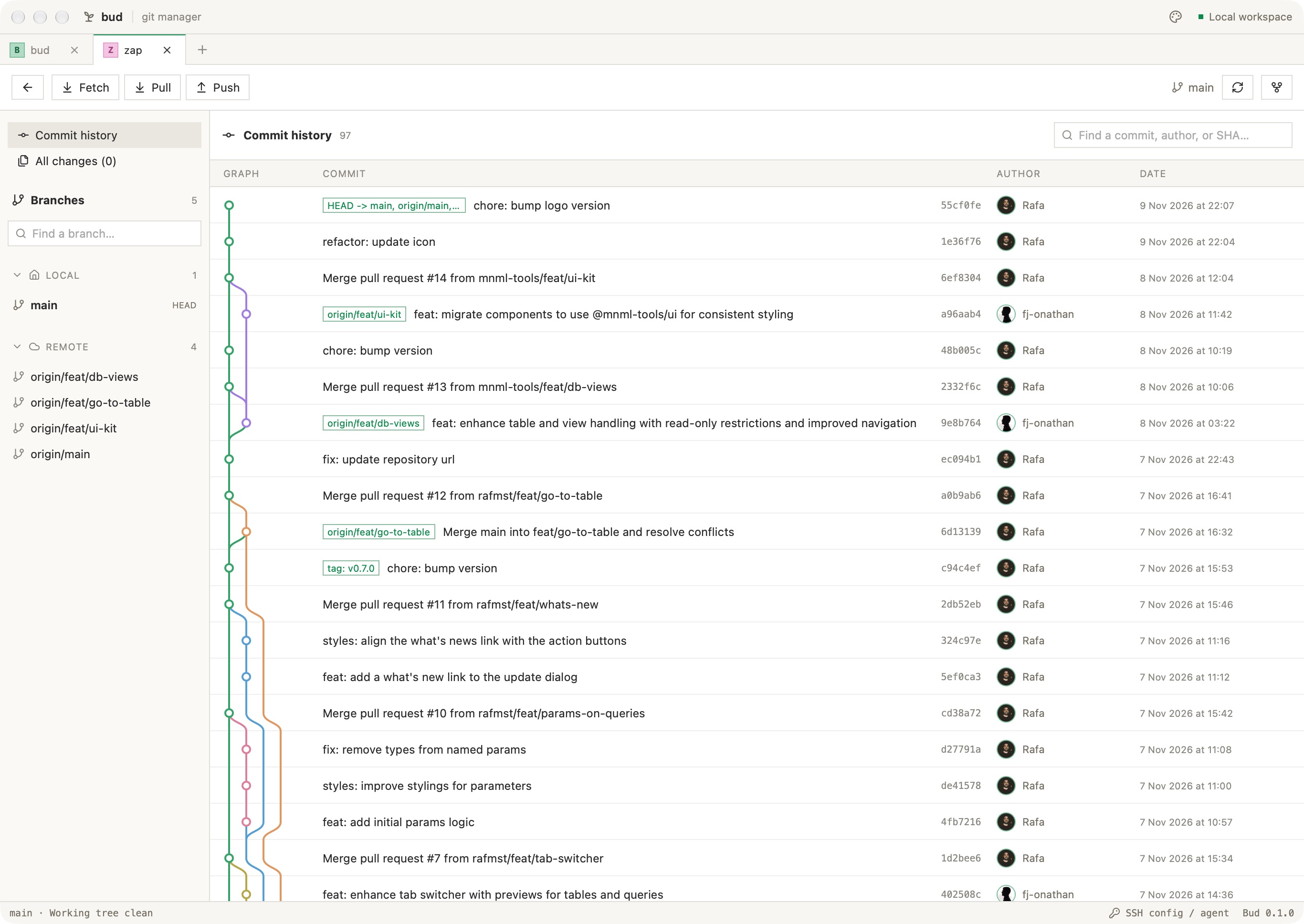
Bud desktop app in light mode

Capabilities

How it works.

Read the documentation
01

Repository management

Open local repositories or clone a remote, then return to them from a searchable grid or list.

  • Switch saved repositories from the header and assign repository avatar colours.
  • Removing a saved repository removes its shortcut; repository files remain on disk.
  • Opening a repository does not automatically fetch from the remote.
02

Commit graph and branches

Browse topologically ordered history across all refs and a valid HEAD.

  • History loads in batches of 300; virtualized rows avoid mounting the entire history.
  • Coloured lanes show parent relationships, merges, and shared ancestors.
  • Search highlights matching commits while preserving graph topology. Branch selection jumps to its loaded tip; local branches can be checked out.
03

Review, stage, and commit

Review working changes and stage files before creating a commit.

  • Write the commit subject and description in the workspace.
  • Optional AI generation fills an editable conventional commit draft; it does not stage, commit, or push.
  • An existing draft requires an explicit replacement action before generated text overwrites it.
04

Remote operations

Fetch and push use the remote and SSH identity selected for the repository.

  • Network operations run when requested. Push asks for confirmation, targets the current branch, and does not force-push.
  • Git runs off the UI thread with a two-minute operation timeout and terminal prompts disabled.
  • HTTPS authentication uses your existing Git credential helpers.
05

SSH identities

Register existing private keys and choose a default or a per-repository identity.

  • Key labels and paths are stored in local preferences; private key contents are not returned to the UI.
  • Optional passphrases use the operating system’s credential store. Keys without a saved passphrase can use your SSH agent.
  • Selected identities use IdentitiesOnly and strict host verification. Verify unknown hosts through SSH in a terminal first.
06

Opt-in commit drafting

AI is disabled by default and requires an explicitly configured OpenAI-compatible provider.

  • Only an explicit Generate action sends the staged diff to the configured endpoint. Empty diffs and diffs over 120 KB are rejected.
  • Remote endpoints require HTTPS; loopback model servers can use HTTP. The optional API key is stored in the OS credential store.
  • Requests time out after 60 seconds and do not follow redirects. Review the generated message before committing.

Technical reference

Runtime & workflow.

Application
Tauri, React, TypeScript, and Rust; Git must be installed and available on PATH.
Local configuration
Saved repository shortcuts, identity labels and paths, and appearance preferences persist locally.
Appearance
Light and dark themes with five accent colours; green is the default.

Keyboard shortcuts

Use Ctrl on Linux and Windows; ⌘ on macOS unless shown otherwise.

Ctrl / ⌘ + P
Switch saved repositories
Ctrl / ⌘ + O
Open a local repository
Ctrl / ⌘ + N
Clone a repository
Ctrl / ⌘ + Shift + K
Manage SSH identities
Ctrl / ⌘ + R
Refresh the repository
Ctrl / ⌘ + F or double Shift
Focus commit search

Current limits & behavior

  • SSH identity management registers existing keys; it does not generate keys or upload public keys.
  • Server-password prompts and interactive host-confirmation prompts are rejected by the native Git integration.
  • AI drafting sends staged source changes to the provider you configure when you explicitly request generation.
  • Published macOS builds are not Developer ID signed or notarized and may require approval in macOS security settings.
Architecture and implementation details

A different light

Find your focus.

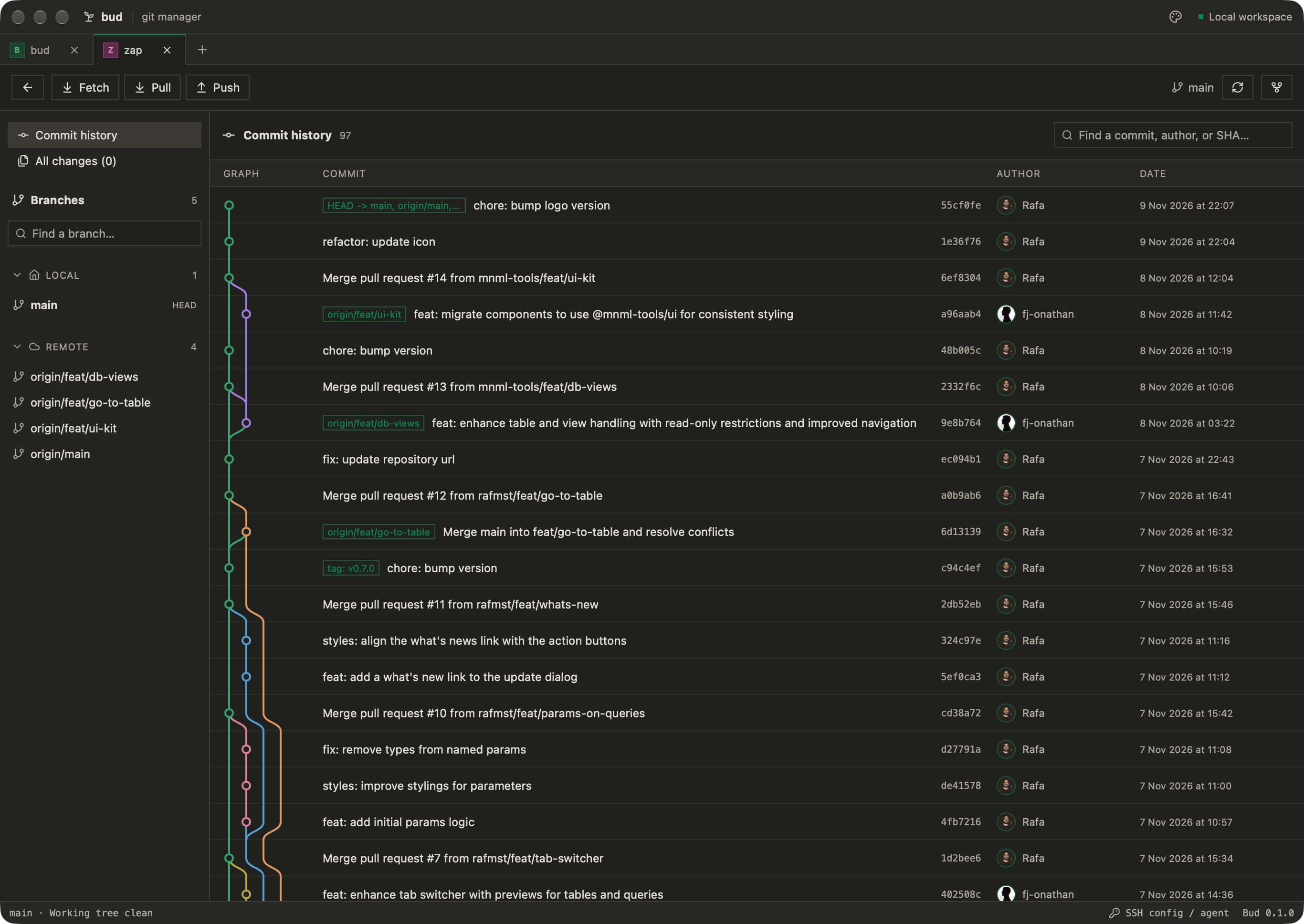
A familiar workspace, in light or dark.

Bud desktop app in dark mode